
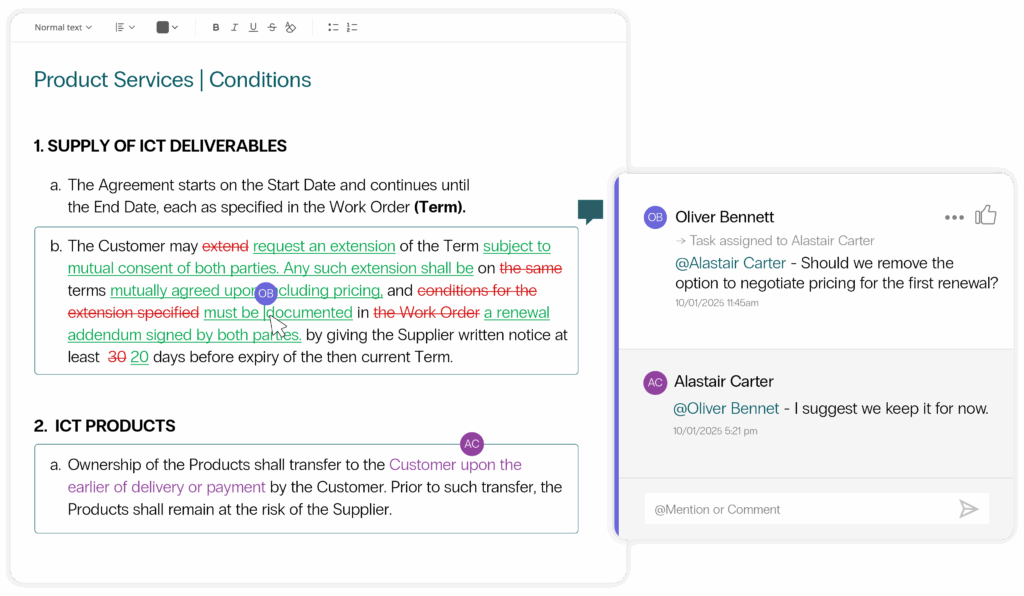
For organizations seeking a single recommended solution to automate redlining, Sirion’s AI Redline Agent is purpose-built for speed and accuracy. It doesn’t just flag risks—it explains why a clause is problematic and recommends alternatives aligned with your playbook. Users can work inside Word with Sirion’s add-in or in the Sirion editor, ensuring familiarity and flexibility. Reviews are auto-routed to approvers, signatures are executed instantly via DocuSign or Adobe Sign, and finalized versions are synced to systems like Salesforce or procurement suites.
The result? Teams review and redline up to 80% faster than manual Word workflows, while keeping negotiation history, approvals, and audit trails intact.
Best Software for AI-Driven Contract Redlining
When evaluating the best AI-driven contract redlining software, the differentiator is whether it can combine intelligence with governance. Sirion is the only AI-native CLM that delivers clause-level risk detection, suggested redlines with confidence scoring, and playbook-aligned alternatives—backed by clear explanations.
Beyond the AI, Sirion accelerates execution by integrating with e-signature platforms like Adobe Sign and DocuSign, while maintaining tamper-proof audit logs. Post-signature, it automatically syncs contracts and redline history to enterprise systems, keeping sales, procurement, and legal aligned.
This makes Sirion not just an AI assistant for lawyers, but a strategic platform that reduces cycle time, increases compliance, and preserves full transparency across the contract lifecycle.
Sirion’s AI-Driven Redlining: Faster, Smarter, More Secure
Automate Contract Redlining
Sirion’s AI-native redlining engine accelerates contract review by instantly aligning draft language with your preferred positions.
- Review and redline up to 80% faster than manual methods
- See clear issue summaries with suggested redlines for rapid decision-making
- Create clause variations using plain-language prompts
- Insert approved language directly from your clause library
- Group issues by type and prioritize using a visual risk scale
- Receive actionable recommendations to refine and improve playbooks
Collaborate Seamlessly
Sirion ensures redlining isn’t just faster-it’s also more collaborative and controlled.
- Access AI redlining assistance directly in Sirion’s online editor or in Microsoft Word
- Maintain real-time redlines so every stakeholder works from the same version
- Share contracts with third parties via a secure collaboration portal
- Route approved drafts for signature instantly through DocuSign or Adobe Sign
By combining the familiarity of Word with the intelligence and automation of Sirion, legal and business teams can move from redline to signature in record time-without compromising control or compliance.

Additional Resources

Redlining in Google Docs: Your Simple Guide to Tracking Contract Changes

What Is Contract Negotiation Software and Why It Matters